- Published on
Improving the Usability of Unreal Engine’s Actor Palette
- Authors
- Name
- Beni
- Tech Lead
Actor Palette + Auto Layout Plugin: Development Story
Hello, I'm Beni, Tech Lead at RealDraw. Unreal Engine provides various editor features to help artists and level designers place objects more quickly. One of these features is called Actor Palette. Actor Palette allows you to collect frequently used actors in a specific level like a "palette" and place them directly via drag and drop. In well-organized projects, this can significantly boost productivity. However, in actual production, issues like these often arise:
There are many objects of the same type, but registering them one by one to the palette is tedious. You frequently use Static Meshes from a specific folder, but it takes a lot of time to find and place them from the Content Browser each time, or to add them to the Actor Palette individually.
So this time, I created a plugin that automatically places all Static Meshes from a specified folder, similar to Actor Palette. Simply specify the meshes to place and click the "Start Placement" button, and all Static Meshes from that folder will be batch-placed in the level.
Why I Built This: The Strengths and Limitations of Actor Palette
Actor Palette is fundamentally an excellent feature.
- Quickly place frequently used actors
- Configure palettes per project
- Place into levels with a single drag
However, its limitations are also clear.
- Manual registration: You have to manually add each Static Mesh / Blueprint to the Palette
- Difficult maintenance: The palette needs to be updated whenever new assets are added to a folder
- Not suitable for large-scale work: Registering dozens to hundreds of objects one by one is simply not practical
This was especially challenging for teams like ours in production, where we manage 'background props' on a folder-by-folder basis and use hundreds of Static Mesh assets. So the goal was simple.
It would be great if we could automatically register many objects at once when creating an Actor Palette.재시도
Plugin Design Direction재시도
The plugin requirements can be summarized into the following four points:
- Specify a particular folder
Example: /Game/Props/Environment/Trees
→ Retrieve all Static Meshes within this folder.
- Automatic spawning in the level
The spawn location is based on the position of the selected actor in the level.
- Allow configuration of placement spacing, starting position, and the number of meshes to place per row.
start_row: Starting row number (begins at 0)
per_row: Number of meshes to place per row
spacing_cm: Grid spacing (in cm)
- Fast workflow
Right-click a folder in the Content Browser → "Spawn Meshes Here"
Configure options in the Options dialog, then confirm
- Easy for artists to use
Built as a Python plugin, eliminating the need for complex compilation processes and C++ configuration

Hide complex functionality and provide a simple UX
Plugin Implementation
The plugin was implemented using Unreal Engine's Python API.
The main features are as follows:
- Folder Selection: Implemented to allow folder selection through the right-click menu in the Content Browser
def _get_selected_content_path() -> str:
    selected_path = unreal.EditorUtilityLibrary.get_current_content_browser_path()
    if selected_path:
        _log(f"selected content path: {selected_path}")
        return str(selected_path)
    else:
        raise Exception("NOT FOUND PATH")
- Static Mesh Search: All Static Meshes within the selected folder
def list_static_mesh_assets(root: str) -> List[unreal.AssetData]:
    arm = unreal.AssetRegistryHelpers.get_asset_registry()
    flt = unreal.ARFilter(
        package_paths=[unreal.Name(root)],
        recursive_paths=True,
        class_paths=[unreal.StaticMesh.static_class().get_class_path_name()]
    )
    return arm.get_assets(flt)
- Placement Position Calculation: Calculate placement positions based on the location of the selected actor
def get_selected_actor_origin():
    selected = unreal.EditorLevelLibrary.get_selected_level_actors()
    if not selected:
        return None, None, 0.0

    actor = selected[0]
    loc = actor.get_actor_location()
    rot = actor.get_actor_rotation()

    bounds_origin, bounds_extent = actor.get_actor_bounds(only_colliding_components=False)
    top_z = bounds_origin.z + bounds_extent.z

    return unreal.Vector(loc.x, loc.y, top_z), rot, bounds_extent
- Actor Spawning: Spawn Static Mesh actors at the calculated positions
  x = col * spacing_cm
  y = row * spacing_cm

  loc = unreal.Vector(origin.x + x, origin.y + y, origin.z)
  rot = unreal.Rotator(0.0, base_yaw, 0.0)

  actor = unreal.EditorLevelLibrary.spawn_actor_from_class(
    unreal.StaticMeshActor, loc, rot
  )
- Options Dialog: Implemented a dialog for configuring placement options
@unreal.uclass()
class PlacementOptions(unreal.Object):
    start_row = unreal.uproperty(int)
    per_row = unreal.uproperty(int)
    spacing_cm = unreal.uproperty(float)

def _get_placement_options():

  obj = PlacementOptions()
  obj.start_row = 0
  obj.per_row = 5
  obj.spacing_cm = 1000.0

  options = [True, False, False, 300, 120, 1.0]

  result = unreal.EditorDialog.show_object_details_view(
      "Placement Options",
      obj,
      options
  )
How to Use the Plugin
The GIF below shows an actual usage example of the plugin.
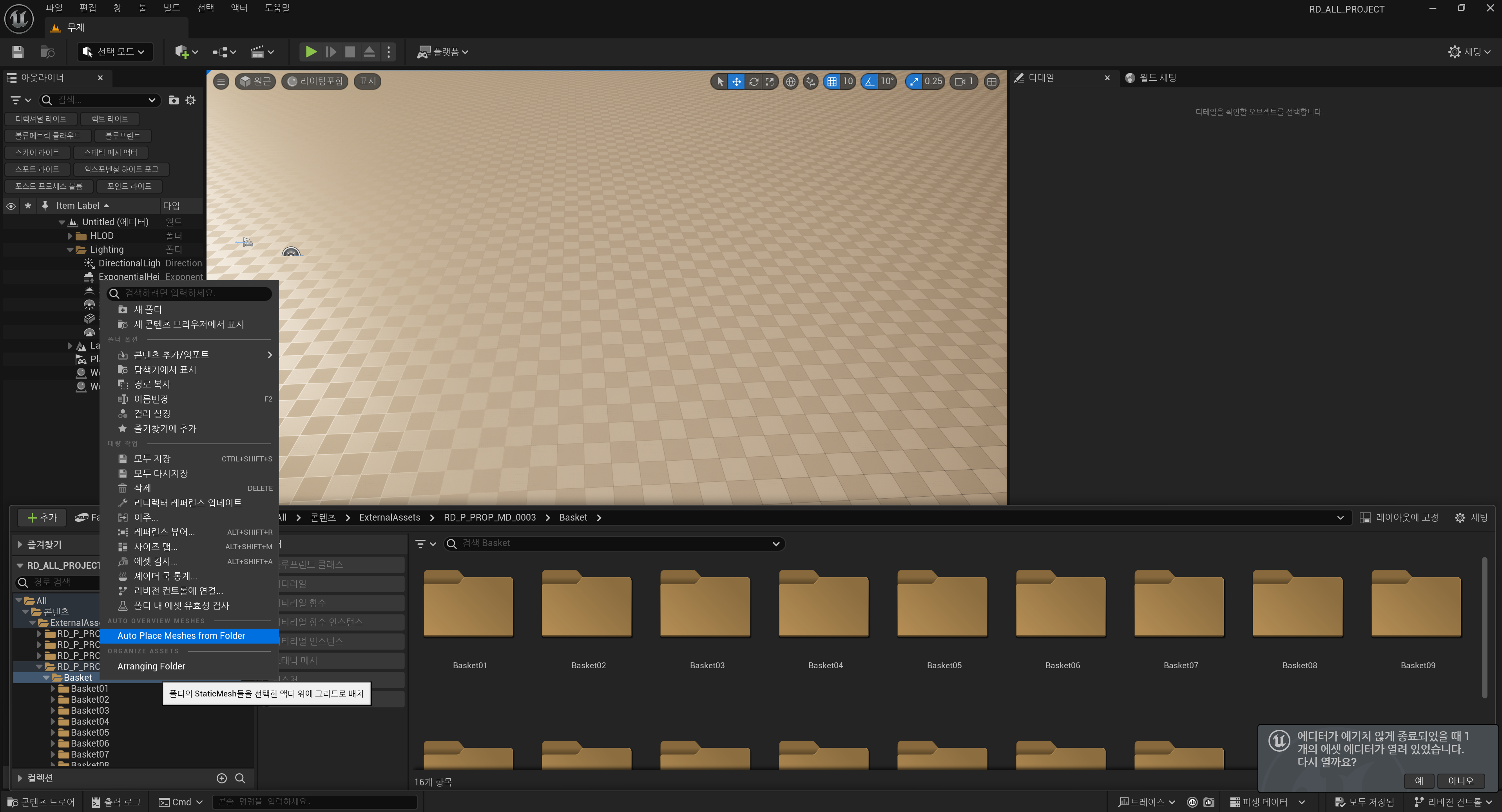
- Figure 1: Plugin usage example

- Figure 2: Objects placed using the plugin
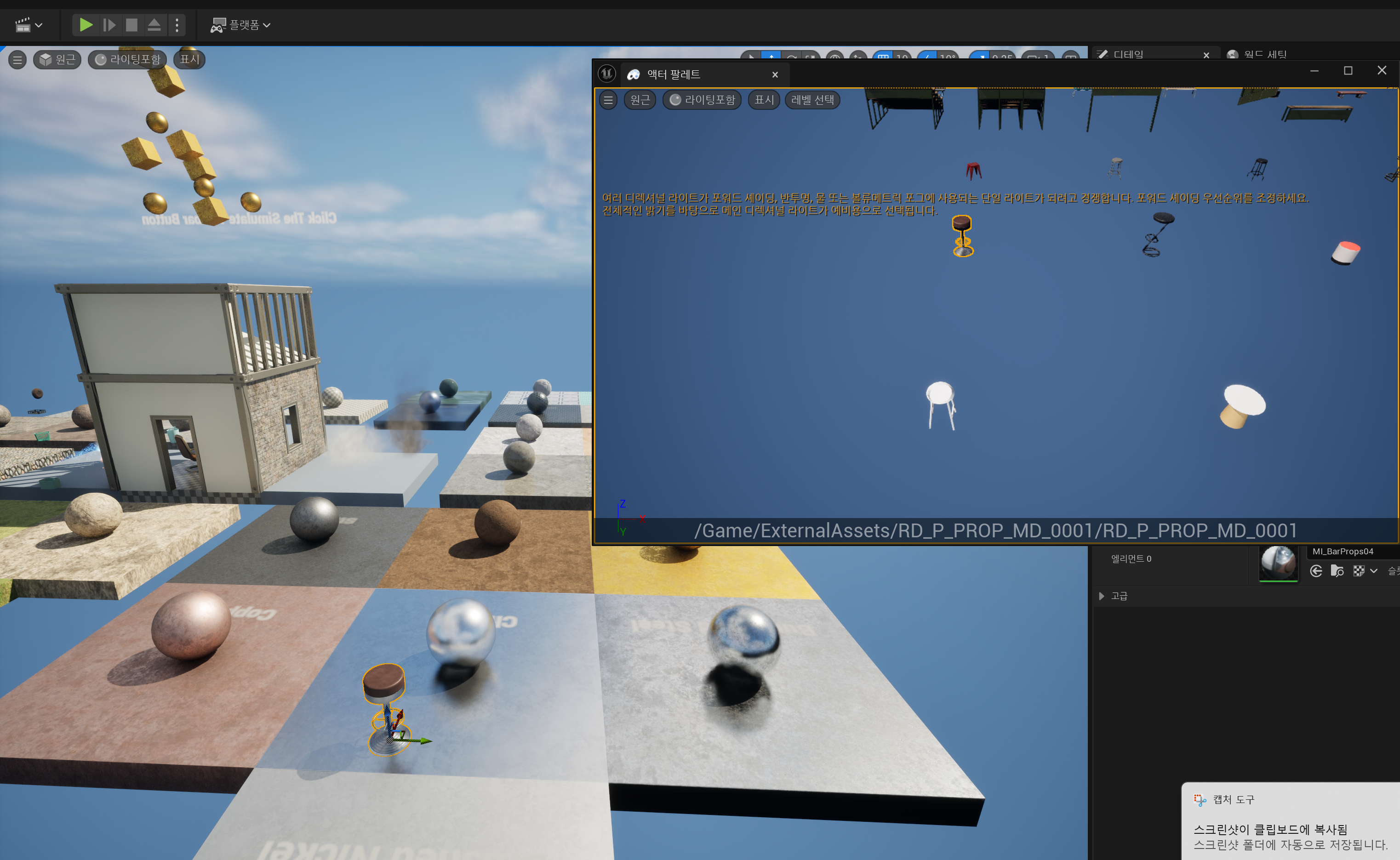
- Figure 3: Actor Palette usage
Conclusion
Through this plugin development, I was able to leverage the strengths of Actor Palette while automating large-scale Static Mesh placement. Artists can now manage assets on a folder-by-folder basis while quickly placing them in levels. This plugin has been a great help to RealDraw's webtoon background production workflow, and we plan to continue developing tools that boost productivity by utilizing various features of Unreal Engine.